How Mind2Mind Works
Begin with your day, make room for a meditation, and reflect afterward. This walkthrough shows where to go for a solo meditation now, a solo or shared session later, or regular practice with a Circle.
Screenshots show example app settings and fictional demonstration data, not personal records or promised outcomes.
These are seven parts of the app, not seven required steps. Check-in, shared practice, Signature and goals are choices you can return to when useful.
Home & check-in
Start with your day.
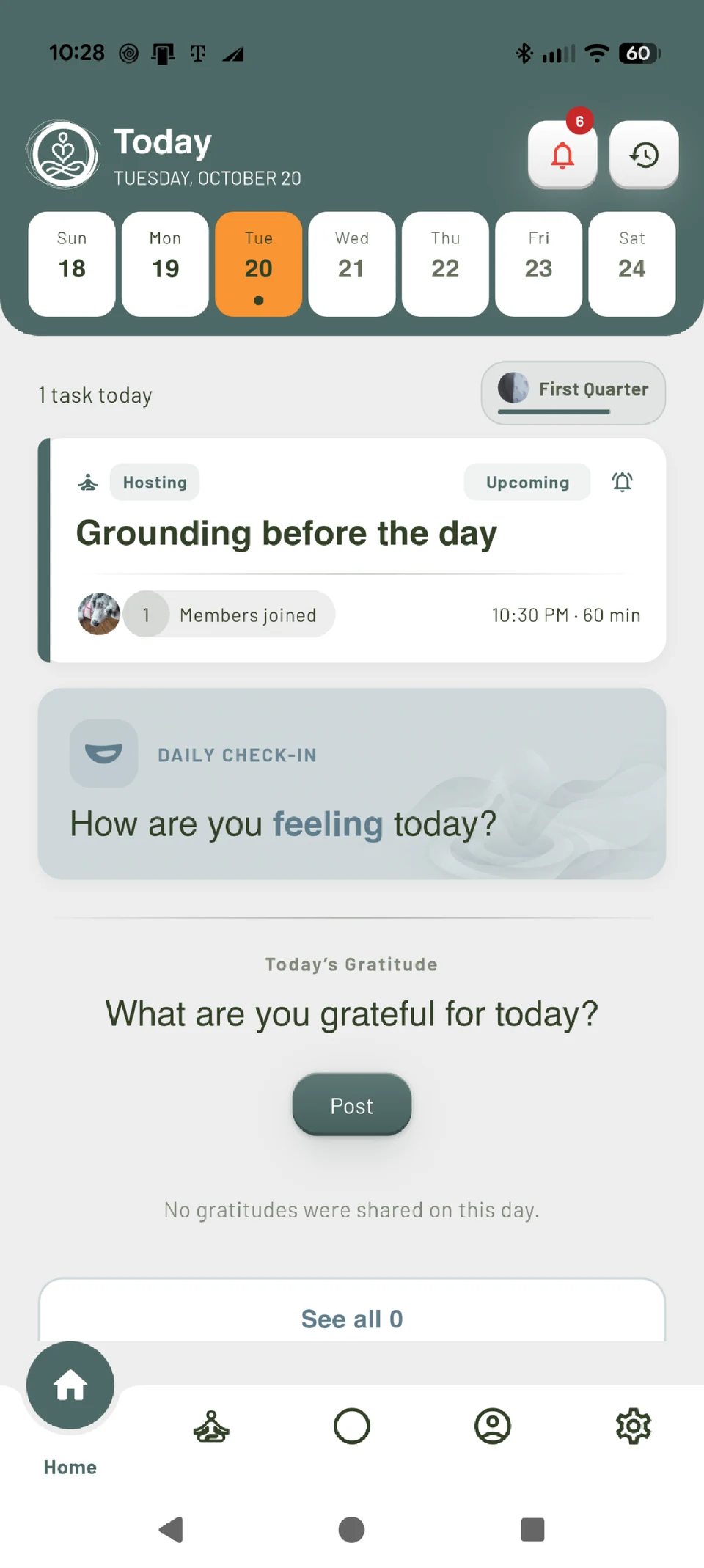
Home brings the selected day into view, including scheduled practice and the daily check-in entry. Checking in is separate from completing a meditation.
- Open Home and select today in the calendar to find the Daily Check-In card.
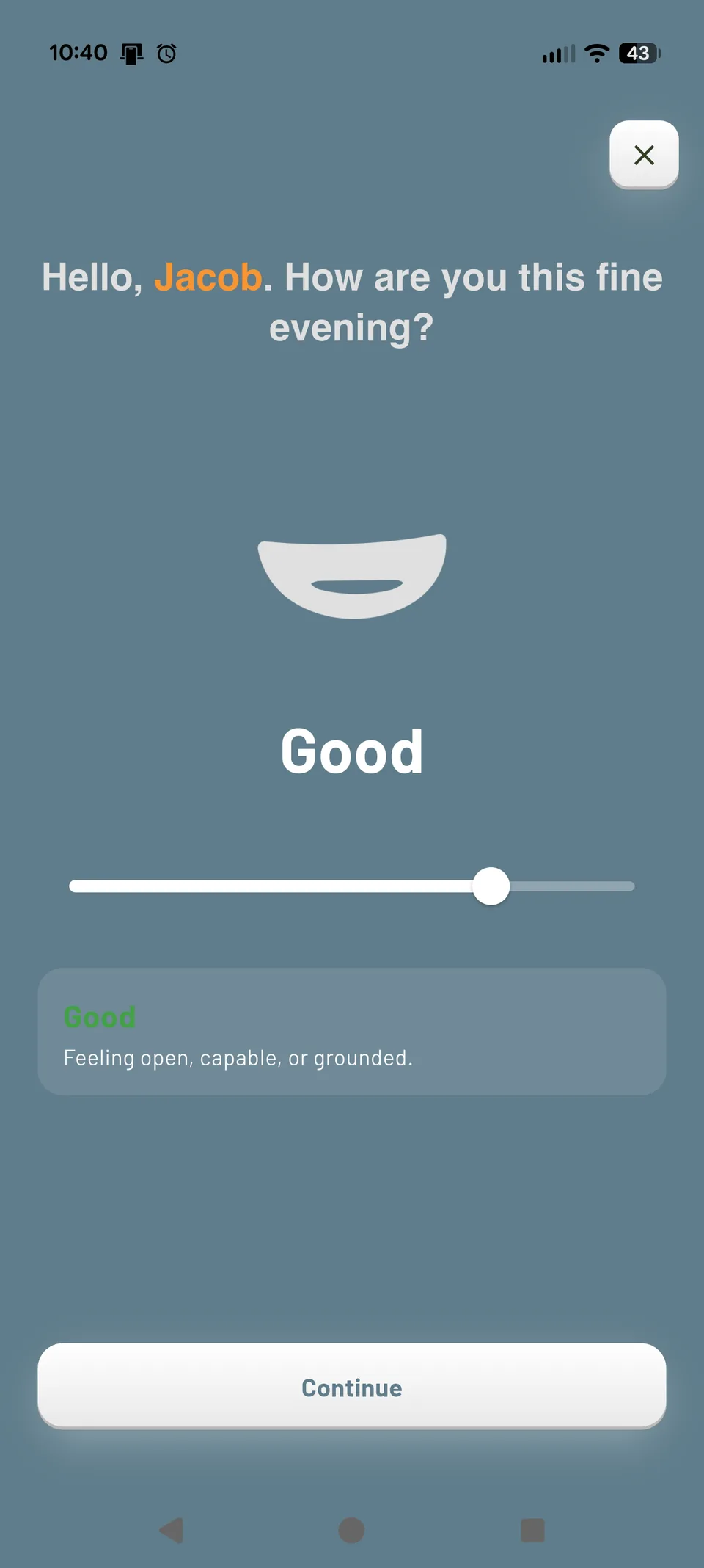
- Tap the card, choose the mood that fits this moment with the slider, then tap Continue to move through the check-in.
- If you have already checked in today, the card opens that day's entries. Use Add to begin another check-in.
The Good selection shown here is an example choice, not a prediction about how you will feel.
Practice now
Begin a solo meditation now.
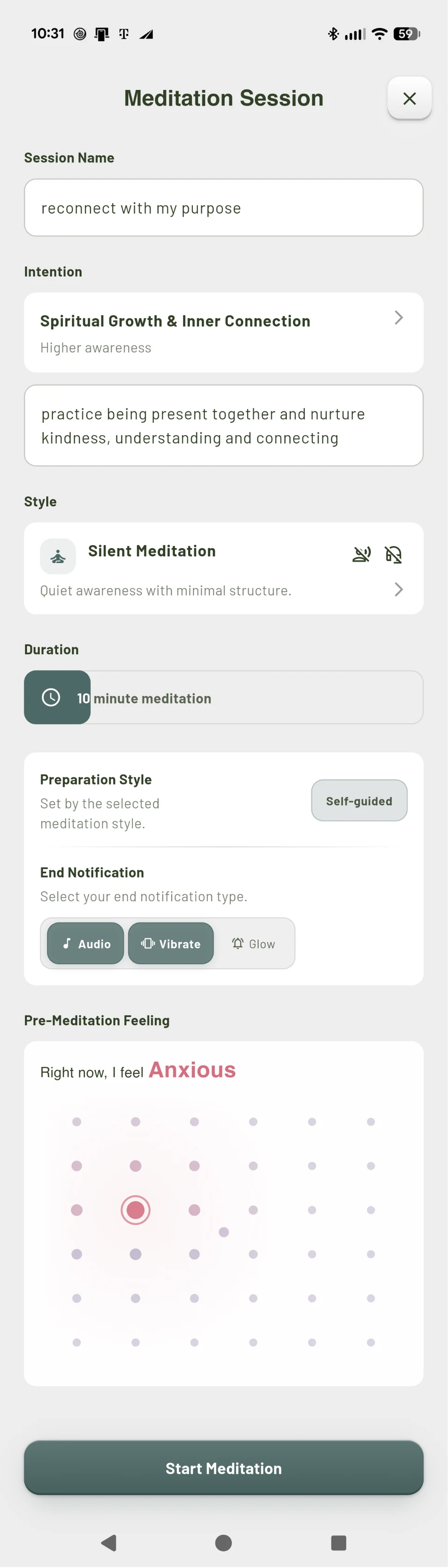
An Immediate meditation is a solo session. Choose your intention, practice style and duration, then begin on your own. The example uses Silent Meditation with self-guided preparation.
- Open Meditate and its session creation menu, then choose Immediate to open Meditation Session.
- Choose your intention and style, set a duration, and select your end notification. Add your pre-meditation feeling if you want to.
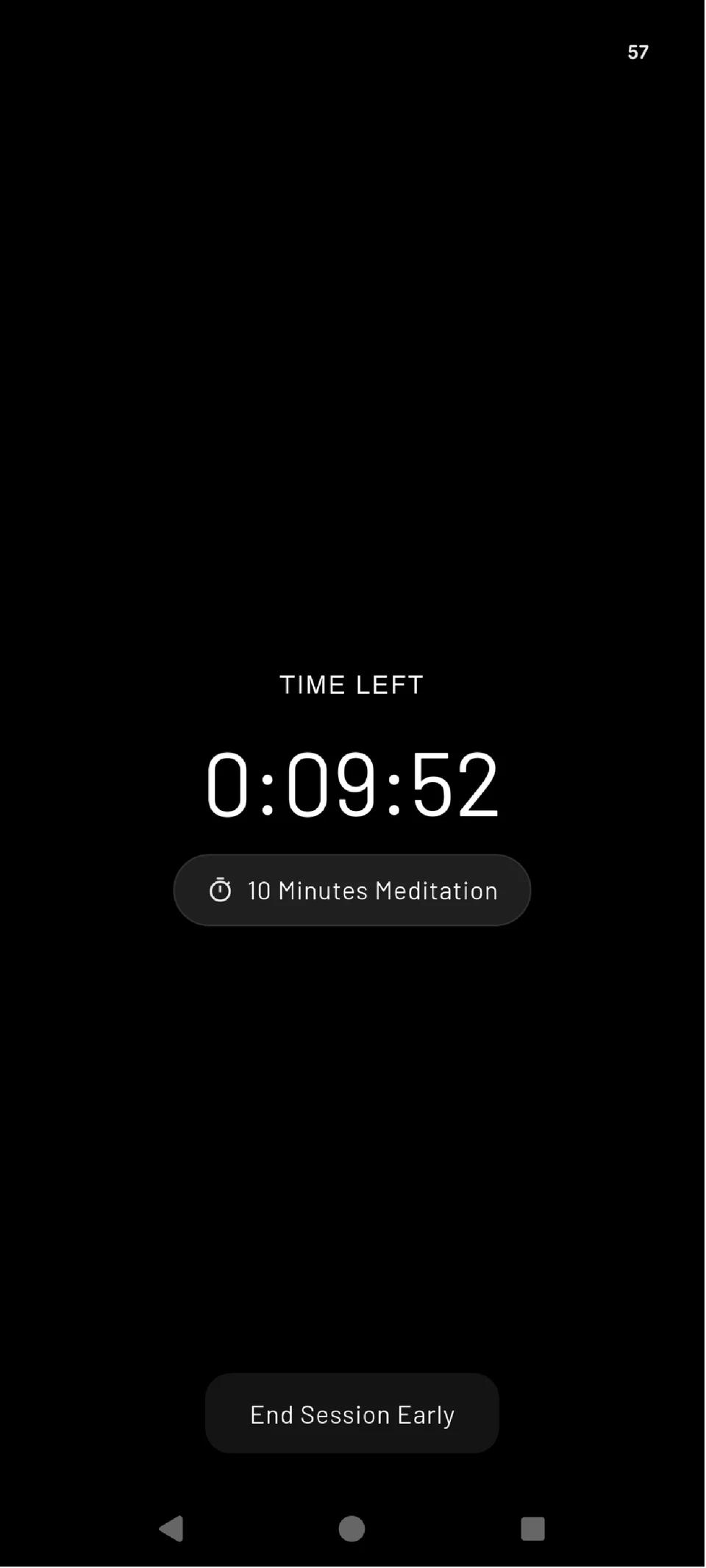
- Tap Start Meditation. During practice, the timer shows the time remaining; End Session Early is available if you need to stop.
Guided meditation and narration are access-gated in the development app. Self-guided Silent Meditation is an alternative; the guided controls shown elsewhere are not a promise of access for every account.
Plan ahead
Schedule solo time or welcome others.
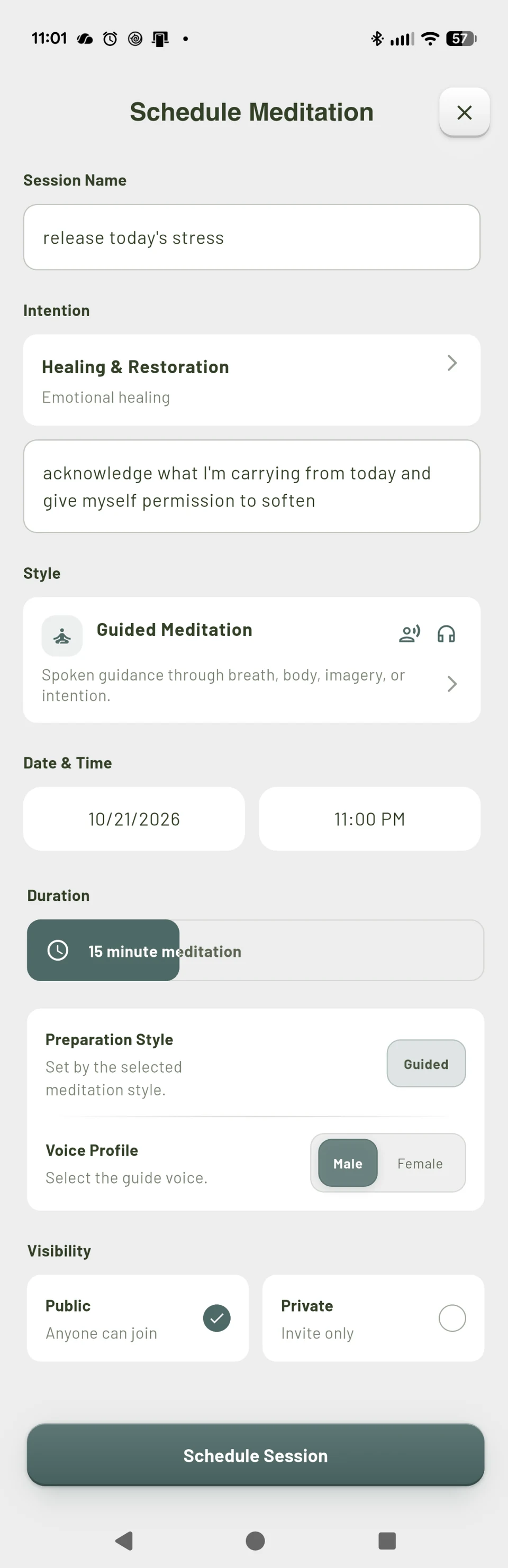
Schedule a meditation for yourself, or make it public so anyone can join you, from a neighbor to someone on the other side of the world. Choose a date and time for the practice rather than starting immediately.
- In Meditate, choose Schedule to open Schedule Meditation.
- Set the intention, style, date, time and duration. For solo practice, choose Private and keep the session to yourself. Choose Public if you want anyone to be able to join; private sessions are invite-only.
- Tap Schedule Session. Return to the selected day in Home to find the scheduled session; reminder preferences are managed in Settings.
The screenshot shows guided preparation and voice options for an eligible development account. Availability depends on access; paid plans and trials are not being offered on this page.
After practice
Notice what the session was like.
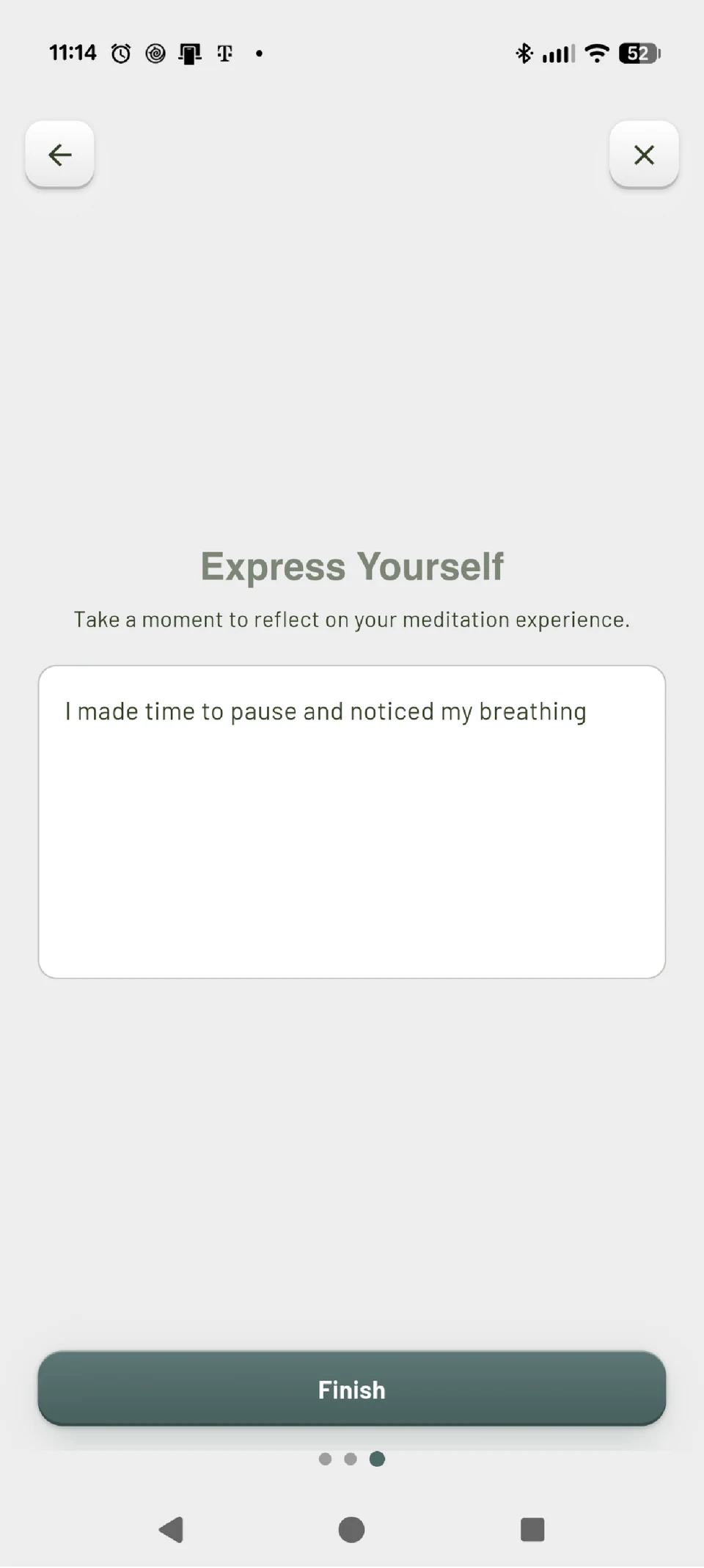
The post-meditation reflection flow gives you a place to record your experience. It is separate from the daily check-in and does not require you to report an improvement.
- When the post-session Reflection flow opens, work through the feeling and reflection choices at your own pace.
- On Express Yourself, tap the writing area to add a note in your own words, then return to the reflection screen.
- Tap Finish to submit the reflection. The example note describes noticing the breath, not a required result.
This website only explains the flow. It does not collect reflection text, check-ins or quiz results, and does not transfer any selection into the app.
Practice together
Return to practice with a familiar group.
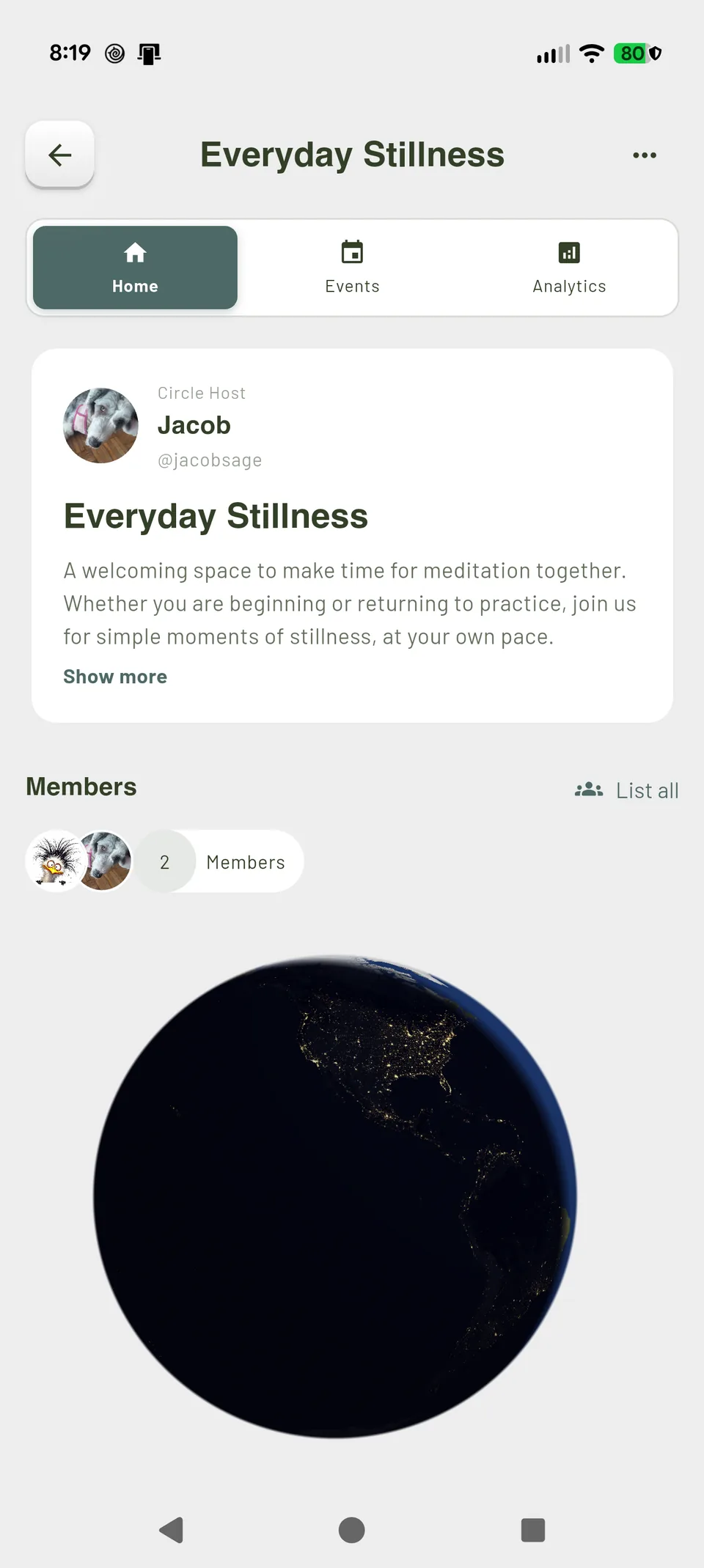
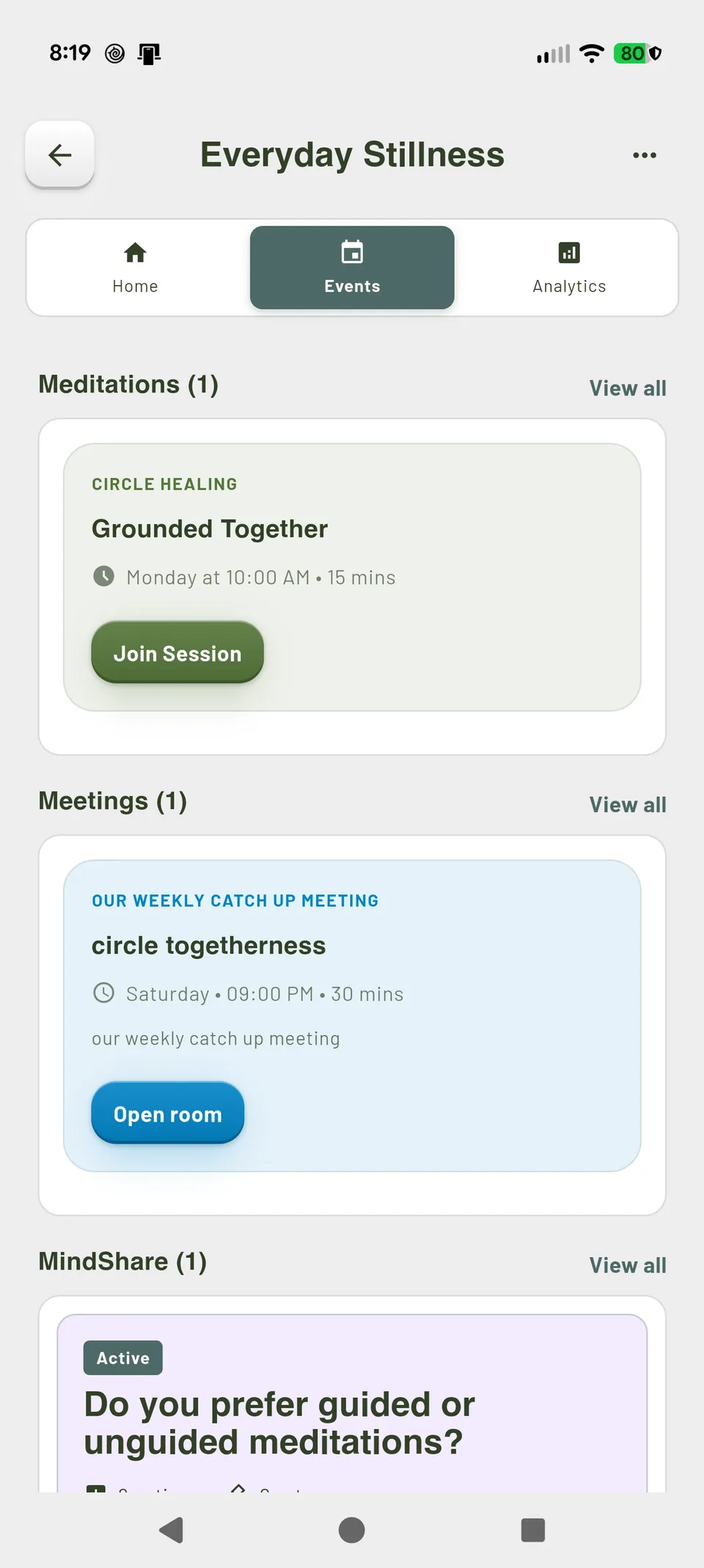
A Circle is a group that regularly meditates together. Returning to the same group gives you a chance to get to know its members over time. Its Home introduces the group; its Events tab lists the meditations you can join.
- Open Circles and a Circle you belong to. Read its Home description to understand the group's purpose.
- Open Events and look under Meditations for a session. Review its name, schedule and duration.
- Choose Join Session to add that Circle meditation to your practice schedule. This is a joining choice, not a button that immediately starts meditation.
Everyday Stillness, its members and Grounded Together are fictional examples. Joining is optional. Host management controls and development-only meeting features are not part of this walkthrough.
Your preferences
Describe the way you practice.
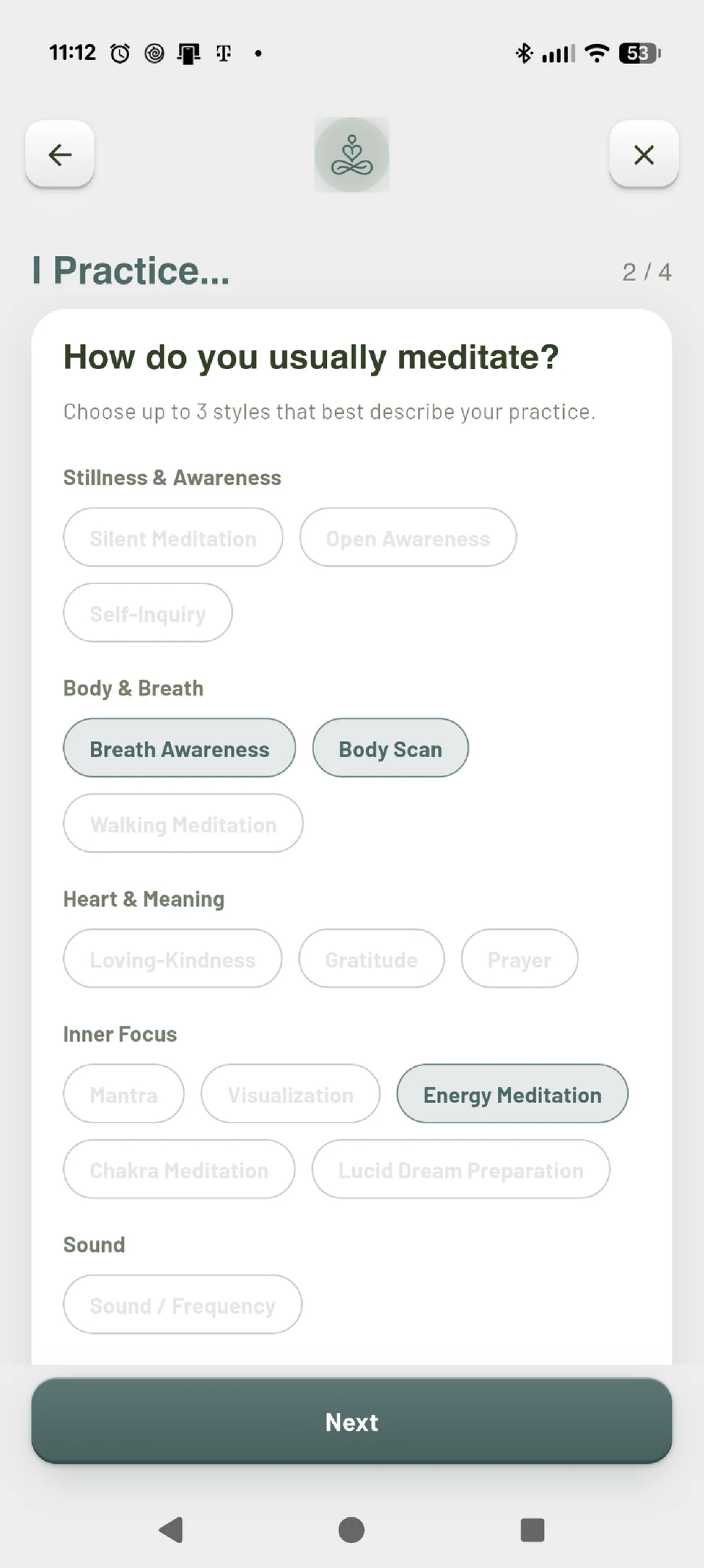
Meditation Signature is a set of preferences you can edit, not a quiz result or a measure of meditation ability. It includes how you describe yourself, your practice styles, what you bring and your bio.
- Open Settings, then Meditation Signature or Build My Meditation Signature.
- Move through the four parts. On I Practice, choose up to three styles that describe your practice, then tap Next.
- Review the remaining choices and bio, then tap Save. Your Signature supplies preferences for future practice; it does not guarantee any particular experience.
Selecting a style as a preference does not unlock access-gated narration or establish a spiritual or clinical assessment.
Return in your own rhythm
Keep goals and reminders on your terms.
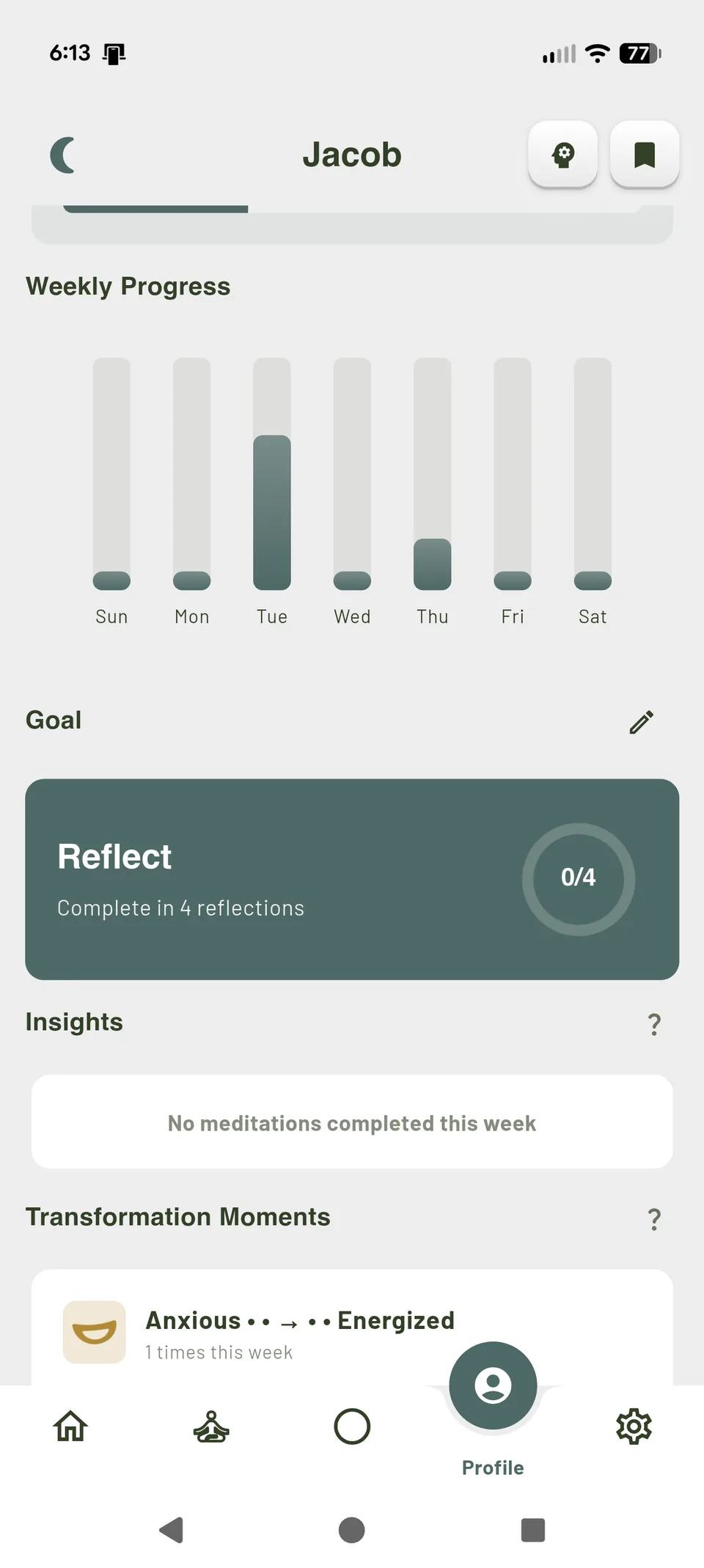
Profile shows practice activity and the selected goal. Settings holds the defaults and notification choices that support how you want to return.
- Open Profile and scroll to Goal. Use the pencil button to change the goal and its target; the example is four reflections, with zero completed.
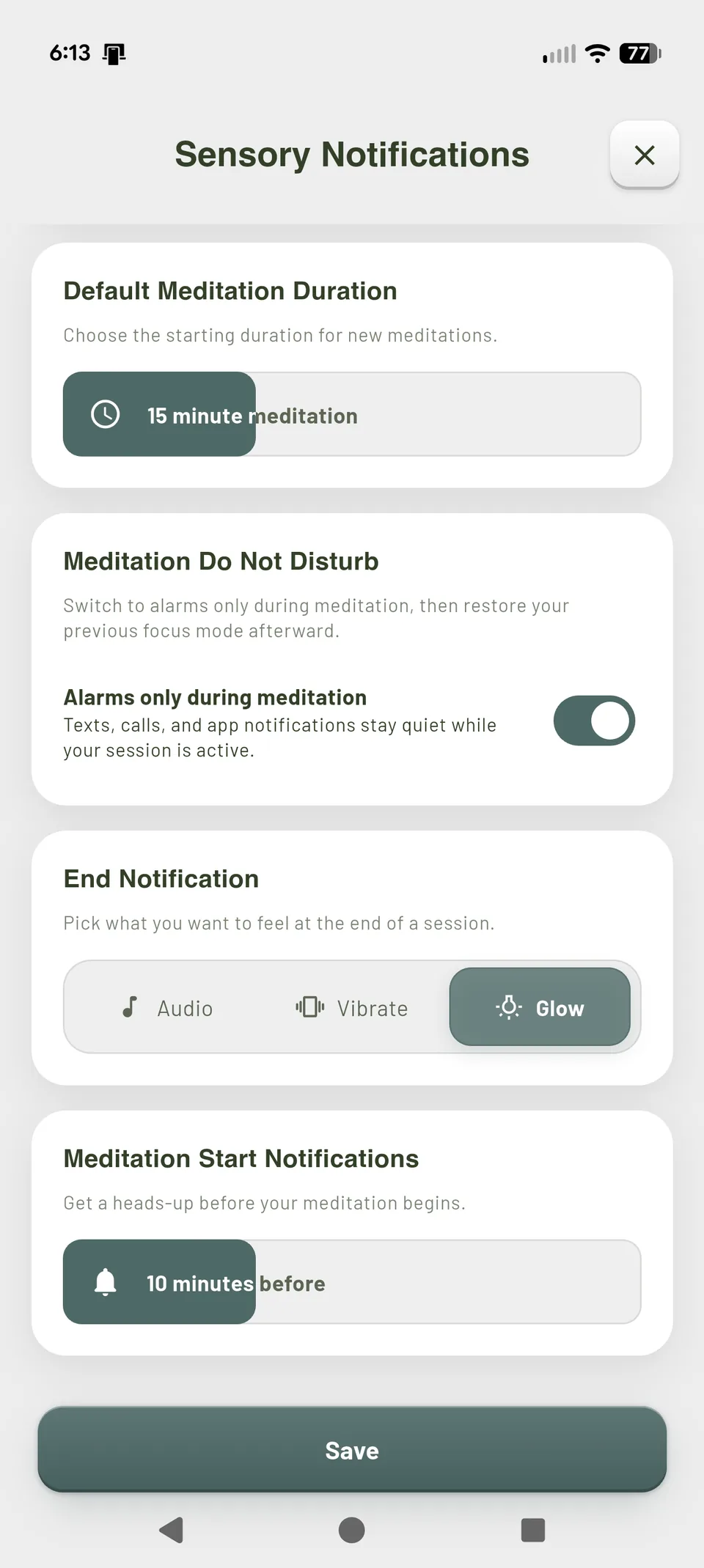
- Open Settings, then Sensory Notifications. Review the default meditation duration and choose an End Notification such as Audio, Vibrate or Glow.
- Set Meditation Start Notifications to a lead time, or turn that reminder off, then tap Save. The example uses 10 minutes before.
Reminder delivery depends on device permissions and settings. The pictured activity and feeling changes are fictional records, not evidence of a guaranteed benefit.
Before you begin
App availability
 App Store: not released
 Google Play: not released
Mind2Mind is currently free to use in the US. It has not yet been released in the app stores.
For the product overview, explore the Mind2Mind app. For questions, read the FAQ or contact Mind2Mind.
Mind2Mind is for wellness, reflection, and personal practice. It is not medical care, therapy, diagnosis, treatment, or emergency support.